 Loading... Please wait...


- Home
- Theme Features
- Style Formatting





Style Formatting
Wanna change the Color of the Theme of your choice?
Here you go! Follow the steps below to make changes
Step 1: Overwrite Theme images
The mail icon in the newsletter section, Product Tab active arrow and down arrow under home featured and new arrivals title are images. You can change it by overwriting images in its location with your custom images.
- Connect your server with WEBDAV
- Once connected, Go to the location. Template » images » craze
- Below are the pink color theme images that have been used in Craze. Just change the color and upload it in the above folder location with the same file name.

- Featured and New arrivals title down arrows as "home-tab-bottom.png"
- Product page Tab active arrow as "tab_active.png"
- Mail icon in the newsletter as "newsletter-icon.png"
- Slideshow previous & next arrows as bg_direction_nav.png
Step 2: Change CSS file path
Finally, You need to change the path of the store.css & font-awesome.css in HTMLHead Panel file.
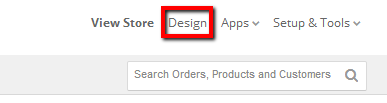
A. To view/edit "HTMLHead", Click Design
B. Choose "Template Files" under the tab "More"
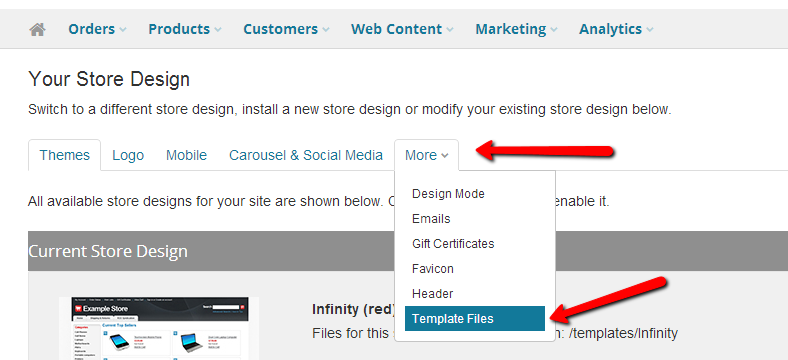
C. Now you will see a full list of your template files. Scroll down to the "Panels" and click the plus sign next to it. In that folder, Find the file named "HTMLHead.html". Click on the Action wheel of that file and select edit.
In HTMLHead.html, Look for the line (highlighted in the screenshot below) and replace the path as given in the Path below

Path : /template/Styles/store.css
Path : /template/Styles/font-awesome.css
Step 3: CSS file edit
You need to find and replace all the occurrence of pink color with color code as #f7527d in all the below files.
- Custom.css
- Font-awesome.css
- Popup.css
- Product.quickview.css
- Store.css
- Styles.css
- Theme.css
To view all these CSS files,
- Click on Design.
- Then Click on the Template Files tab.
- Scroll down to the Styles folder and click the plus sign next to it.
- Click on the Action wheel of a CSS file and select edit.
- Start replacing the color codes and finnaly "Save" it to view changes.

 Meggnotec